
Last Updated: 2026-09-02
For PresentCast help, contact:
- Email: [email protected]
- Community: join our Telegram group for updates and tips (users in mainland China can join the QQ group)
Common questions
What can PresentCast do?
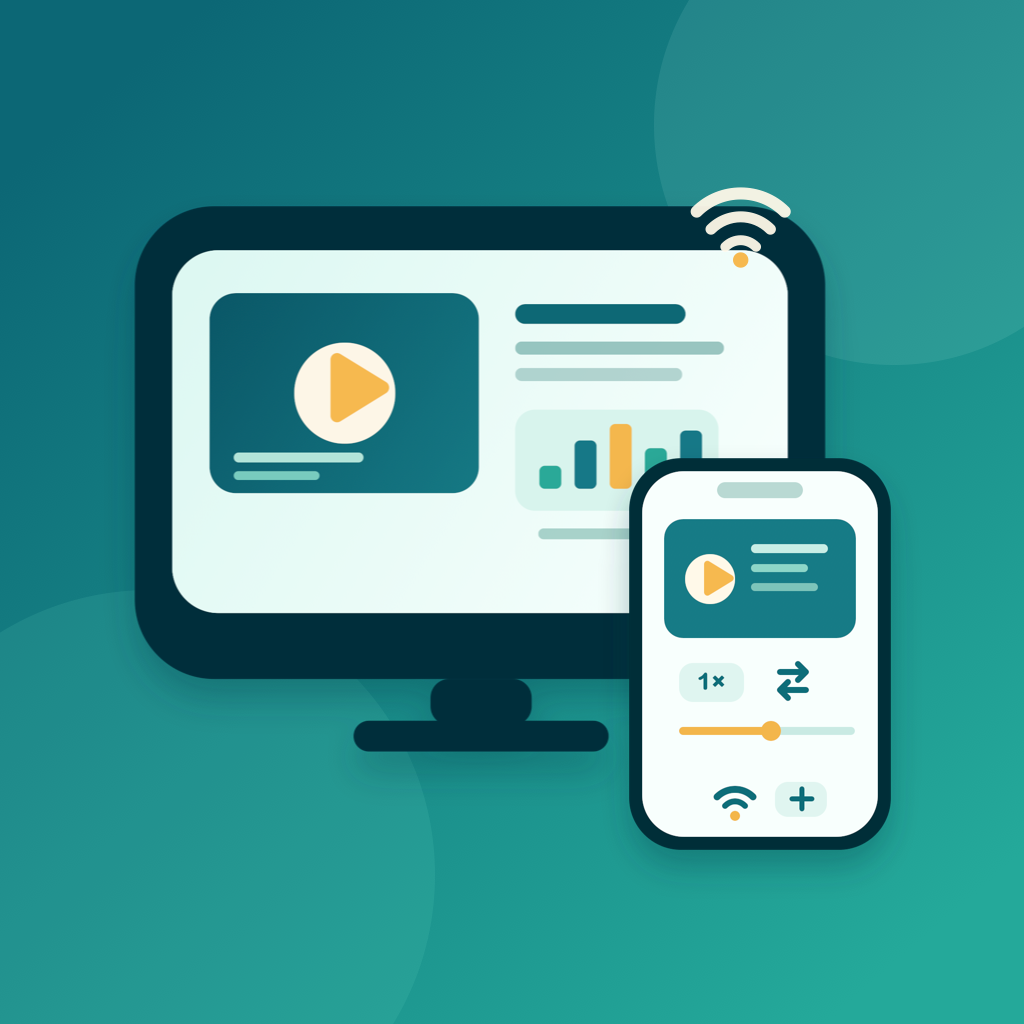
PresentCast builds ordered playlists of PDFs, photos, and videos on your iPhone or iPad, then casts them in order to a TV, projector, or Apple TV over AirPlay, or to a compatible DLNA/UPnP smart TV or set-top box on the same Wi-Fi. Present in Order plays the playlist top to bottom while you drive it from the on-device remote — advance pages, play video, reorder the queue live, or loop the run sheet. You can also preview everything on the in-app Demo Display.
What is a playlist (run sheet)?
A run sheet is a named, ordered playlist of items from your library — PDFs, photos, and videos. You can rename, duplicate, and reorder run sheets and start one with a tap. During playback, PDF pages, still images, and videos auto-advance in sequence, and each photo's time on screen can be set from 3 to 20 seconds.
Can I change the order during a presentation?
Yes. The Presentation Order editor lets you tap any item to jump straight to it, or drag to reorder the live queue while casting.
Does PresentCast mirror my screen?
No. PresentCast sends only the playlist content you selected to the big screen, not a mirror of your device screen. Your notifications, home screen, and other apps stay private.
What file formats are supported?
PDF documents; images in JPEG, PNG, HEIC, HEIF, TIFF, and WebP; and videos in MP4, M4V, and MOV. Audio-only files, web pages, and PowerPoint or Keynote decks are not supported — export slides to PDF first.
Do I need an account?
No. PresentCast does not require account registration. Imported files, playlists, render cache, preferences, and history are stored locally on your device.
Does PresentCast collect analytics or track me?
No. PresentCast does not include advertising SDKs, third-party analytics trackers, or cross-app tracking, and it does not collect personal information. The App Store privacy label is "Data Not Collected."
What devices and receivers does PresentCast work with?
PresentCast runs on iPhone and iPad with iOS 15 or later. It works with compatible AirPlay receivers, including Apple TV and supported AirPlay 2 smart TVs or projectors, and with compatible DLNA/UPnP MediaRenderer smart TVs and set-top boxes on the same Wi-Fi. Supported formats and controls vary by manufacturer and model, so test the receiver you plan to use. No receiver nearby? Use the in-app Demo Display to rehearse.
Do playback speed and video seeking work on every receiver?
On the in-app Demo Display, yes. On AirPlay and DLNA/UPnP receivers, they depend on the controls the receiver supports — the UPnP standard makes playback speeds optional, and not every TV implements seeking or volume control. PresentCast reads a DLNA receiver's supported speeds and verifies what it actually applies, showing a message when a control is unavailable on that display. Playlist playback itself — playing the run sheet in order, advancing, reordering, and looping — works on every display.
Can I cast without an Apple TV?
Yes. Use a compatible AirPlay-enabled TV or projector, discover a compatible DLNA/UPnP smart TV or set-top box on the same Wi-Fi, or use the in-app Demo Display for preview and rehearsal. PresentCast does not support Chromecast or native Miracast, and it does not automatically convert a video that the receiver cannot play.
What does PresentCast Pro unlock?
The free tier includes ordered playlist presenting on the Demo Display, AirPlay, and DLNA, the presentation remote, a recent-files history of 5 items, 3 favorites, playback speeds from 0.75× to 1.5×, and output up to 1080p at 30 fps. Pro unlocks unlimited history and favorites, playback speeds from 0.1× to 4× (on DLNA receivers, within the speeds the receiver supports), Smart Fill, output up to 2K/4K at 60 fps, and remembering and restoring the last display. Choose a Monthly ($2.99) or Yearly ($19.99) auto-renewable subscription, or a one-time Lifetime ($39.99) purchase.
How do I restore Pro?
Open PresentCast, open the PresentCast Pro (Cast Pass) screen, then tap Restore Purchases.
How do I manage refunds, cancellations, or subscription billing?
Purchases and subscriptions are handled by Apple. Open Settings on your device, tap your Apple ID, then tap Subscriptions to manage or cancel. For refunds and billing, use the App Store or Apple Support purchase/subscription pages.
What should I include in a support email?
Please include your device model, iOS/iPadOS version, PresentCast app version, whether you are using Pro, the receiver you are casting to, AirPlay or DLNA (if any), and a short description of the issue (and a screen recording if possible).